Start a Wiki
Sign In
Don't have an account?
Register
Sign In
Explore
Fan Central
Try FanCentral
Games
Movies
TV
Video
Wikis
Explore Wikis
Community Central
Start a Wiki
Manage all your favorite fandoms in one place!
Try FanCentral
Don't have an account?
Register
Sign In
Community Central
Manage all your favorite fandoms in one place!
Try FanCentral
Don't have an account?
Register
Sign In
Search the world's largest fan wiki platform
Search
GAMES
The Best April Fools' Day Gaming Jokes Of 2025
GAMES
CoD Season 3 Patch Notes: Big Movement Changes, Camo Hub In Black Ops 6/Warzone
GAMES
The Biggest Game Releases Of April 2025
GAMES
Doom: The Dark Ages Looks Like A Trip To Hell Worth Taking
GAMES
Best Assassin's Creed Games: Every Game, Ranked
Are you a drama bingeaholic? Complete a quiz & enter for a chance to win
TOP WIKIS
GAMES
Terraria
Minecraft
Genshin Impact
MOVIES
Star Wars
Harry Potter
Marvel
TV
Memory Alpha
Arrowverse
SpongeBobia
ANIME
One Piece
Naruto
My Hero Academia
Plus over
250,000
more to explore
Movies
View All
Popular Wiki Pages in Movies
Harry Potter
Harry Potter Wiki
Neo
Matrix Wiki
Harley Quinn
DC Extended Universe
Snake Eyes
G.I. Joe Wiki
Disney Princesses
Disney Wiki
Godzilla
Monster Verse Wiki
Top News Stories in movies
GameSpot
14h
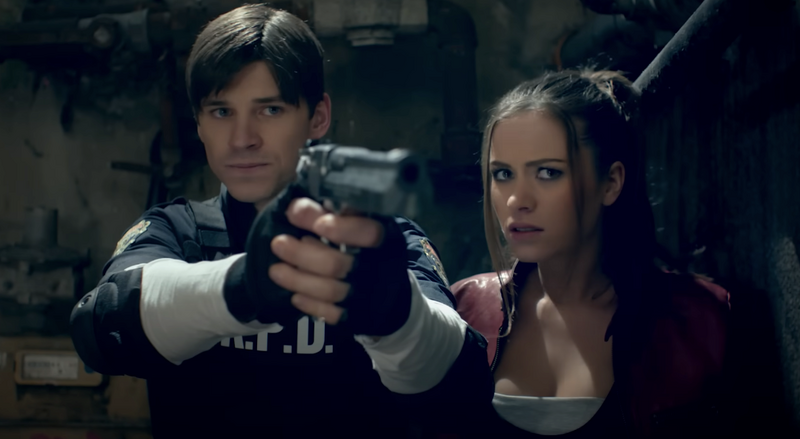
New Resident Evil Movie Will Be "Unlike Any Of The Previous Films" Director Says
The new movie will be "built in the spirit" of the video game series.
GameSpot
1d
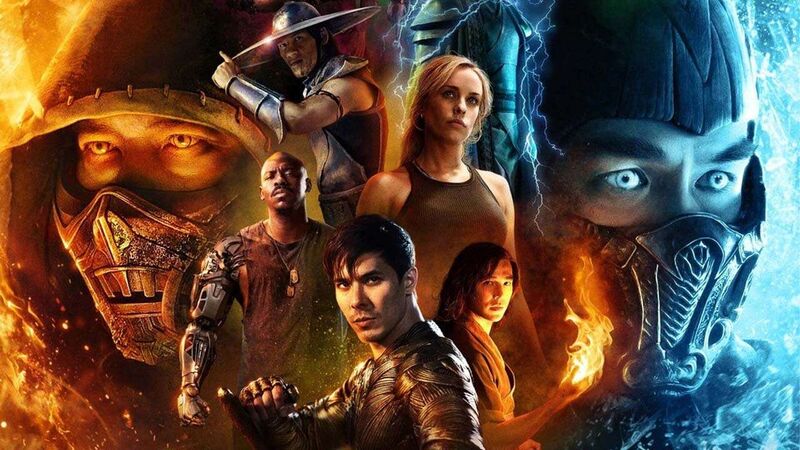
Mortal Kombat 2 Movie: Release Date And Everything We Know So Far
All bets are off, as Earthrealm finally takes the fight to Outworld in Mortal Kombat 2.
GameSpot
1d
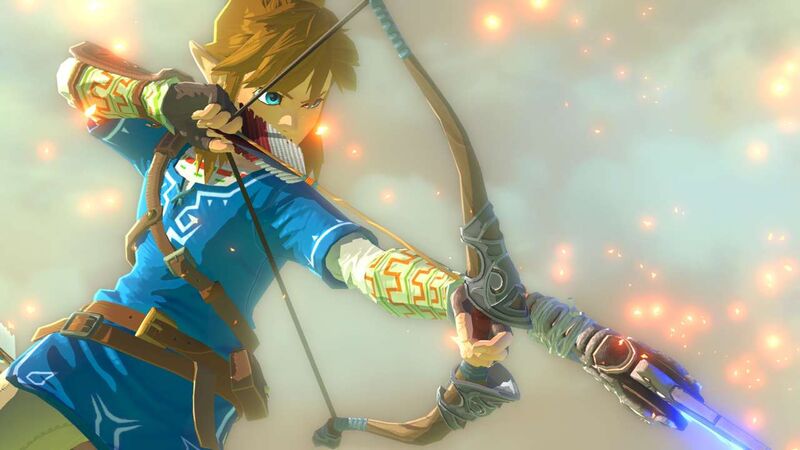
The Legend Of Zelda Live-Action Movie: Release Date And Everything We Know
A live-action movie based on Nintendo's Zelda series is coming with a Maze Runner director and Marvel producer on board.
Games
View All
Popular Wiki Pages in Games
Ellie
The Last of Us Wiki
Lara Croft
Tomb Raider Wiki
Nathan Drake
Uncharted Wiki
Link
Zelda Wiki
Pikachu
Pokemon Wiki
Rathalos
Monster Hunter Wiki
Mileena
Mortal Kombat Wiki
Miles Morales
Spider-Man Wiki
Top News Stories in games
GameSpot
14h
The Best April Fools' Day Gaming Jokes Of 2025
April Fools' Day is here, and with it, some great jokes from the gaming industry.
GameSpot
1d
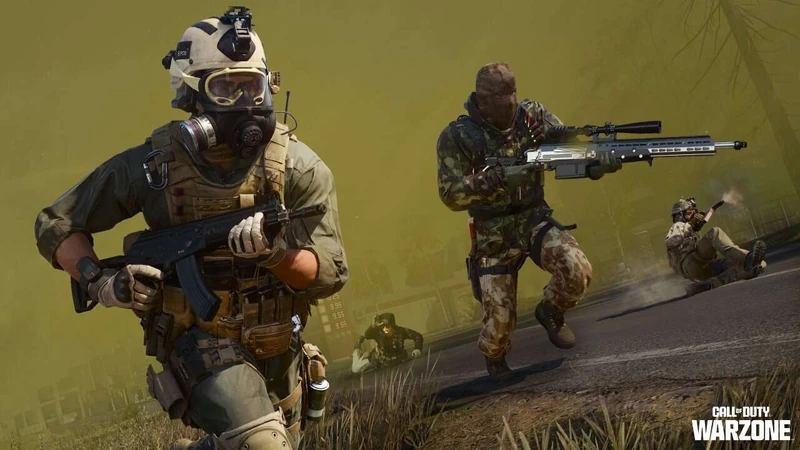
CoD Season 3 Patch Notes: Big Movement Changes, Camo Hub In Black Ops 6/Warzone
The patch notes include major changes for Season 3 of BO6 and Warzone.
GameSpot
1d
The Biggest Game Releases Of April 2025
From South of Midnight to a visually impressive RPG, here's a closer look at the biggest games releasing this month.
GameSpot
1d
Doom: The Dark Ages Looks Like A Trip To Hell Worth Taking
After almost three hours of hands-on time with Doom: The Dark Ages, id Software’s next game could be its biggest yet.
GameSpot
1d
GTA 6 Release Date Remaining A Mystery Could Be On Purpose
"Rockstar Games seeks perfection in what they do. Perfection is a pretty high bar. It takes a long time."
GameSpot
1d
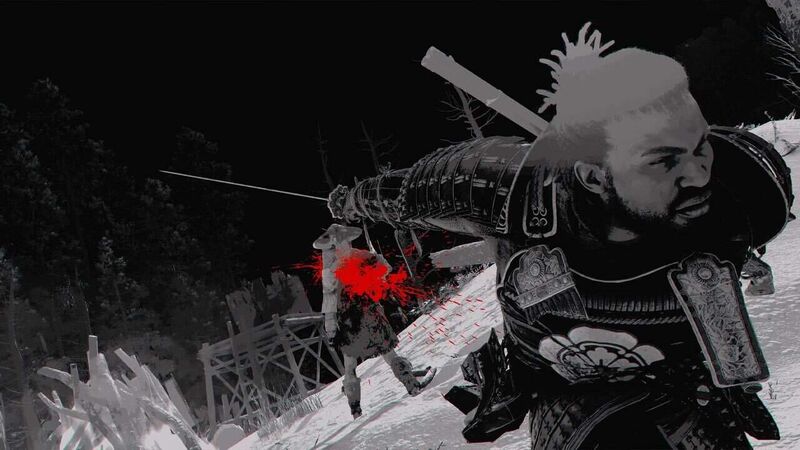
Assassin's Creed Shadows Developers Are Considering An Even Tougher Difficulty
Death by a single cut.
TV
View All
Popular Wiki Pages in TV
Grogu
Star Wars Wiki
Geralt
Witcher Wiki
The Boys S3
The Boys Wiki
Ahsoka Tano
Star Wars Wiki
Zuko (ATLA)
Avatar Wiki
Starfire
Titans Wiki
Sex Education S3
Sex Education Wiki
SpongeBob
SpongeBob Wiki
Top News Stories in tv
TVGuide.com
Mar 26
Grey's Anatomy Turns 20: The Best Episodes That Shaped It Into a Classic
All the triumph and tragedy that shaped Meredith Grey and company
TVGuide.com
Mar 26
Of Course It's Helly
The Season 2 finale of Severance is ambiguous, but it isn't a lie
TVGuide.com
Mar 26
Netflix's Million Dollar Secret Is the Perfect Binge Until The Traitors Returns
The man behind the show calls it "The Backstabbing Olympics"
TVGuide.com
Mar 21
Severance's Dichen Lachman On Severance Scene: 'The Lights Came on Inside Her'
'She wants to have hope, but she's too scared to give herself any hope'
TVGuide.com
Mar 21
Gwendoline Christie Says Severance Finale Is 'Much More Charged' Than GoT Scenes
'Almost an animal comes out of Lorne'
TVGuide.com
Mar 21
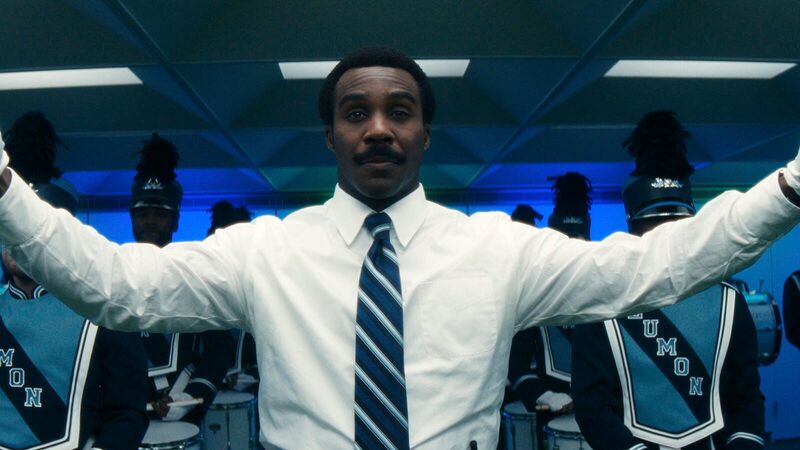
Severance's Tramell Tillman Wanted Milchick's Marching Band Scene To Stand Alone
'I didn't want to try to top the Music Dance Experience'
Search the world's largest fan wiki platform
Search
The latest trends, delivered straight to your inbox.
Stay up to date on all the latest in gaming and entertainment.