Start a Wiki
Sign In
Don't have an account?
Register
Sign In
Explore
Fan Central
Try FanCentral
Games
Movies
TV
Video
Wikis
Explore Wikis
Community Central
Start a Wiki
Manage all your favorite fandoms in one place!
Try FanCentral
Don't have an account?
Register
Sign In
Community Central
Manage all your favorite fandoms in one place!
Try FanCentral
Don't have an account?
Register
Sign In
Search the world's largest fan wiki platform
Search
TV
The Last of Us Season 3: Everything We Know
GAMES
Elden Ring Nightreign - Guides Hub
GAMES
Elden Ring Nightreign Tips You Need To Know Before You Play
GAMES
The Biggest Game Releases Of June 2025
TV
The Most Anticipated Shows of Summer 2025 - Wednesday, Alien: Earth, and More
TV
HBO's Harry Potter Series Has Found Its Harry, Hermione, and Ron
TOP WIKIS
GAMES
Terraria
Minecraft
Genshin Impact
MOVIES
Star Wars
Harry Potter
Marvel
TV
Memory Alpha
Arrowverse
SpongeBobia
ANIME
One Piece
Naruto
My Hero Academia
Plus over
250,000
more to explore
Movies
View All
Popular Wiki Pages in Movies
Harry Potter
Harry Potter Wiki
Neo
Matrix Wiki
Harley Quinn
DC Extended Universe
Snake Eyes
G.I. Joe Wiki
Disney Princesses
Disney Wiki
Godzilla
Monster Verse Wiki
Top News Stories in movies
Games
View All
Popular Wiki Pages in Games
Ellie
The Last of Us Wiki
Lara Croft
Tomb Raider Wiki
Nathan Drake
Uncharted Wiki
Link
Zelda Wiki
Pikachu
Pokemon Wiki
Rathalos
Monster Hunter Wiki
Mileena
Mortal Kombat Wiki
Miles Morales
Spider-Man Wiki
Top News Stories in games
GameSpot
2d
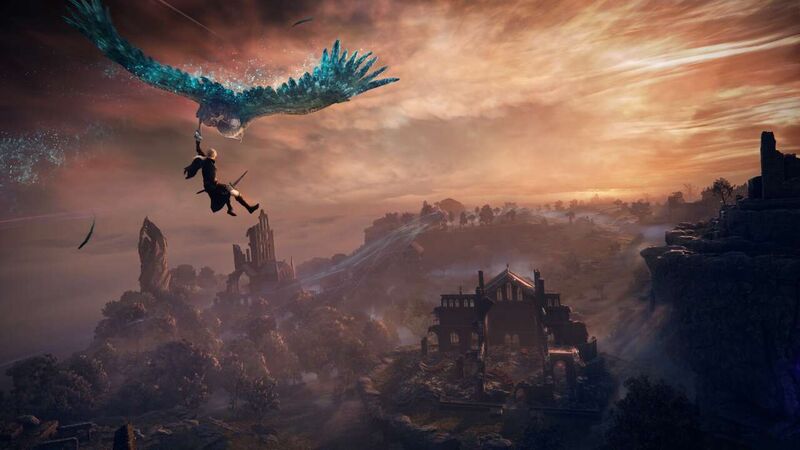
Elden Ring Nightreign - Guides Hub
Elden Ring Nightreign is a game jam-packed with content, and we have you covered with dozens of guides to help you survive the Living Lands.
GameSpot
2d
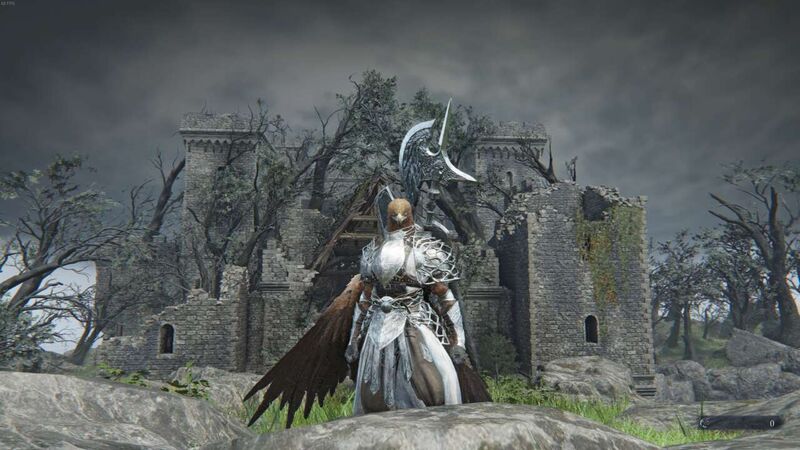
Elden Ring Nightreign Tips You Need To Know Before You Play
Elden Ring Nightreign can be a complex experience, so we have compiled a list of beginner tips to help get you started in the Living Lands.
GameSpot
2d
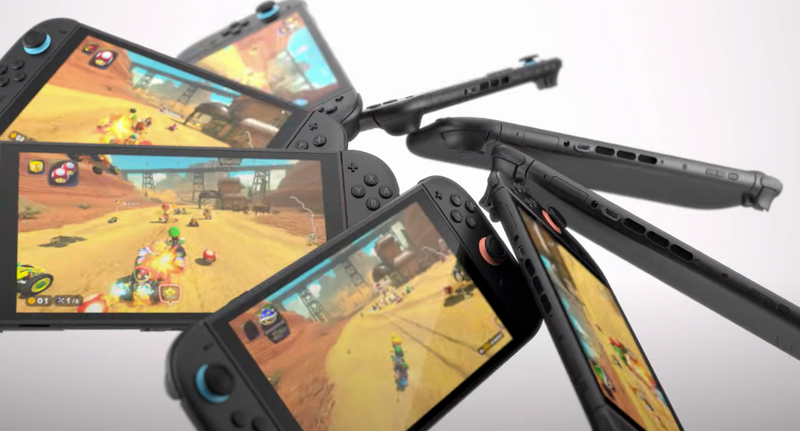
The Biggest Game Releases Of June 2025
From new Nintendo hardware to the return of Sam Porter Bridges, here’s a closer look at the biggest highlights of June 2025.
GameSpot
3d
Trump's Tariffs Blocked By Court With Refunds Possible
A panel ruled that Trump has overstepped his authority.
GameSpot
3d
To A T Review - A Sweet-Natured Fable Without Much To Do
To A T is a quirky and charming story about an underexplored topic; if only the act of playing it were a little more fun.
GameSpot
3d
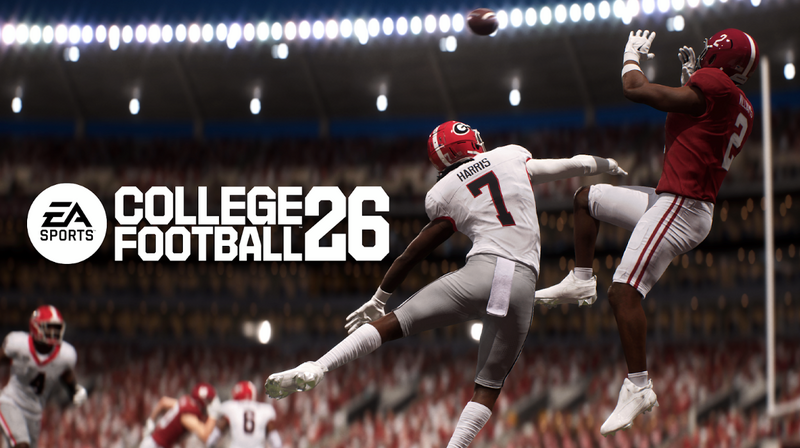
CFB 26 Officially Unveiled With Reveal Trailer And First Details On What's New
Here's everything new and improved for this year's College Football game from EA.
TV
View All
Popular Wiki Pages in TV
Grogu
Star Wars Wiki
Geralt
Witcher Wiki
The Boys S3
The Boys Wiki
Ahsoka Tano
Star Wars Wiki
Zuko (ATLA)
Avatar Wiki
Starfire
Titans Wiki
Sex Education S3
Sex Education Wiki
SpongeBob
SpongeBob Wiki
Top News Stories in tv
TVGuide.com
1d
The Last of Us Season 3: Everything We Know
'We haven't seen the last of a lot of people who are currently dead in the story'
TVGuide.com
2d
The Most Anticipated Shows of Summer 2025 - Wednesday, Alien: Earth, and More
TVGuide.com
4d
HBO's Harry Potter Series Has Found Its Harry, Hermione, and Ron
Who's going to play Voldemort?
TVGuide.com
4d
The Handmaid's Tale Series Ending Explained
All the farewells, reunions, and major moments from Hulu's Emmy winner
TVGuide.com
4d
Sirens Boss Reveals Where She Thinks Devon, Simone, and Michaela End Up
Netflix's miniseries ends with a twist and many question marks
GameSpot
5d
The Last Of Us Showrunners Tease Season 3's New Direction
Following the Season 2 finale, The Last of Us Season 3 is shifting perspectives turning back the clock.
Search the world's largest fan wiki platform
Search
The latest trends, delivered straight to your inbox.
Stay up to date on all the latest in gaming and entertainment.